The Reports page lets you filter by employee and month, then preview and export time tracking reports. Report history is limited to the last 12 months on your plan.
4.1Overview
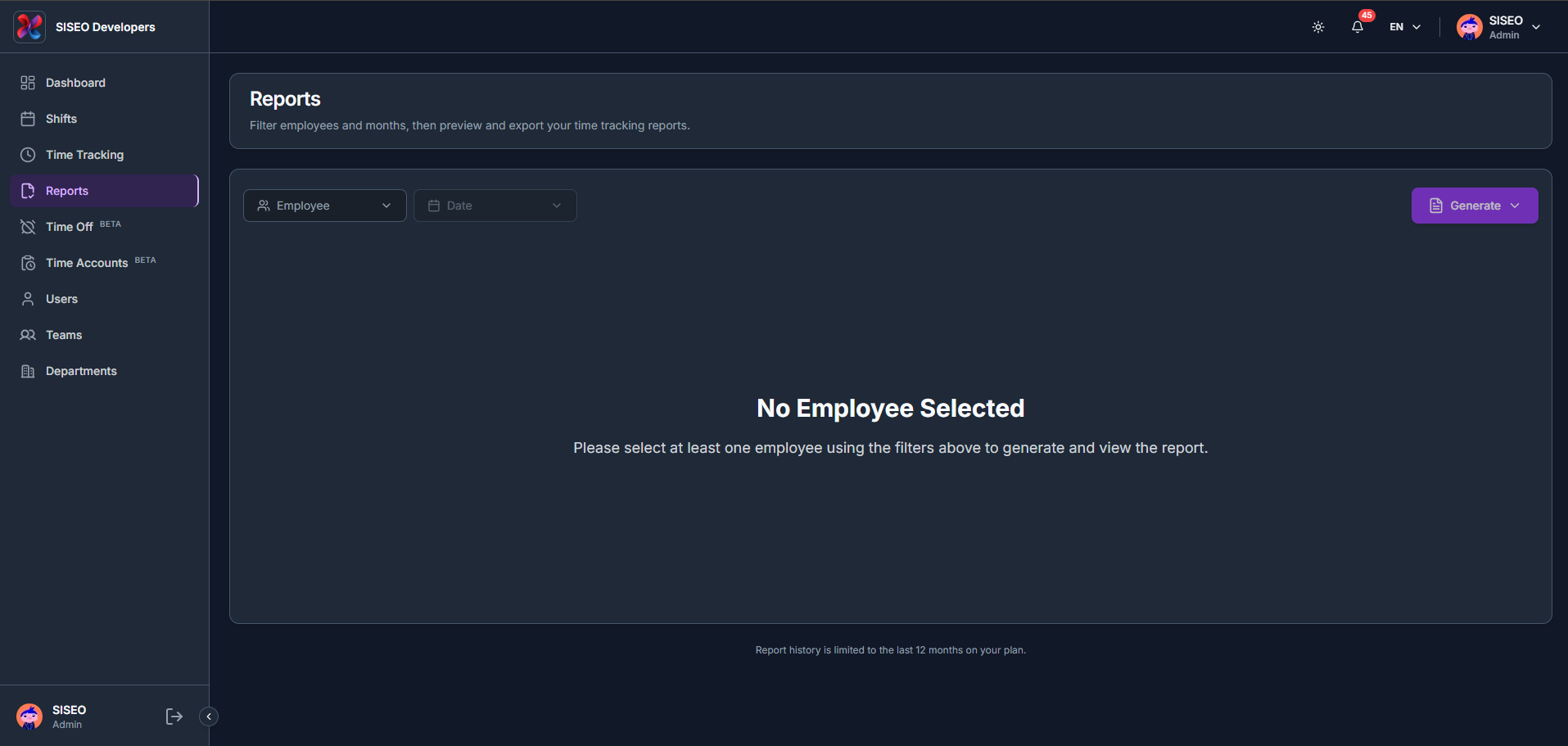
4.2How to generate a report
- 1
Use the Employee and Date filters above the preview area.
- 2
Employee lets you search and select one or more people or teams.
- 3
Date lets you pick one or more months from a given year.
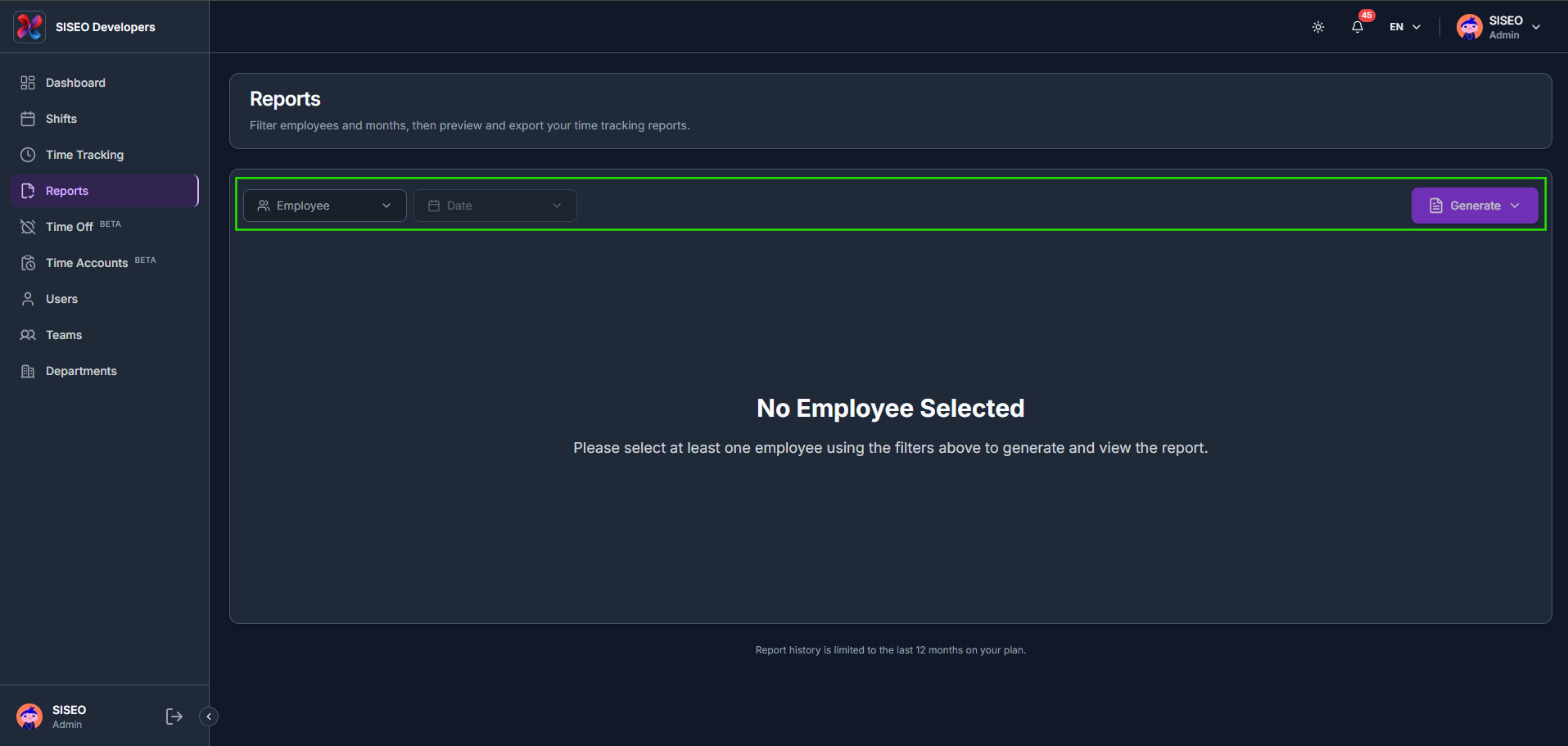
4.3Understanding the report preview
The preview shows the company name, employee name, personnel number and month, followed by a full daily breakdown of start, break, end and duration.
- 1
Pending entries, If the period contains manual entries that haven’t been approved yet, a warning banner appears and those hours are excluded from the totals shown.
- 2
Negative corrections, Any negative correction in the period shows its duration in red, the same way it appears in Time Tracking.
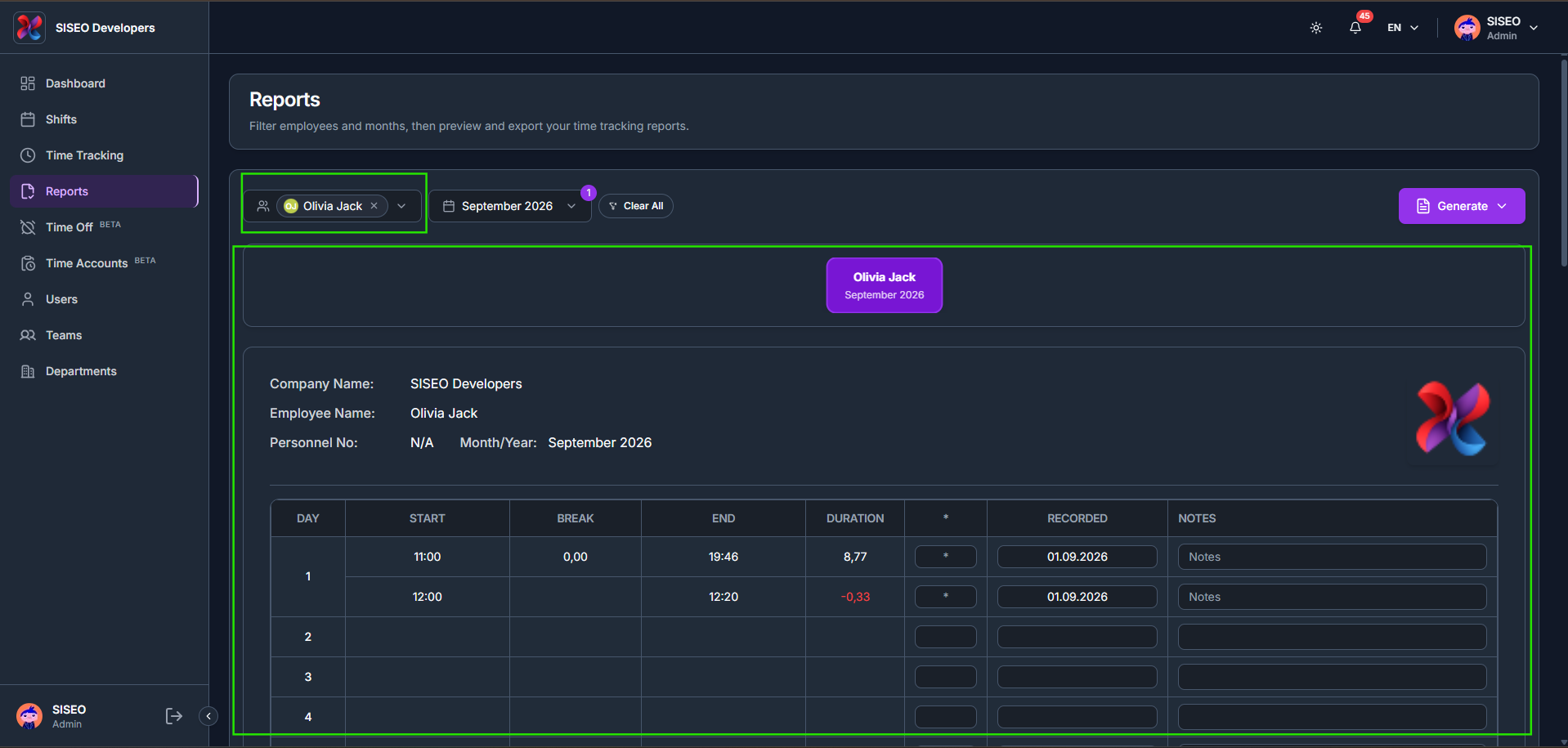
4.4How to export a report
- 1
Click Generate to open the export menu.
- 2
Choose Export as PDF, Export as Excel, or Export as CSV.
4.5Signatures
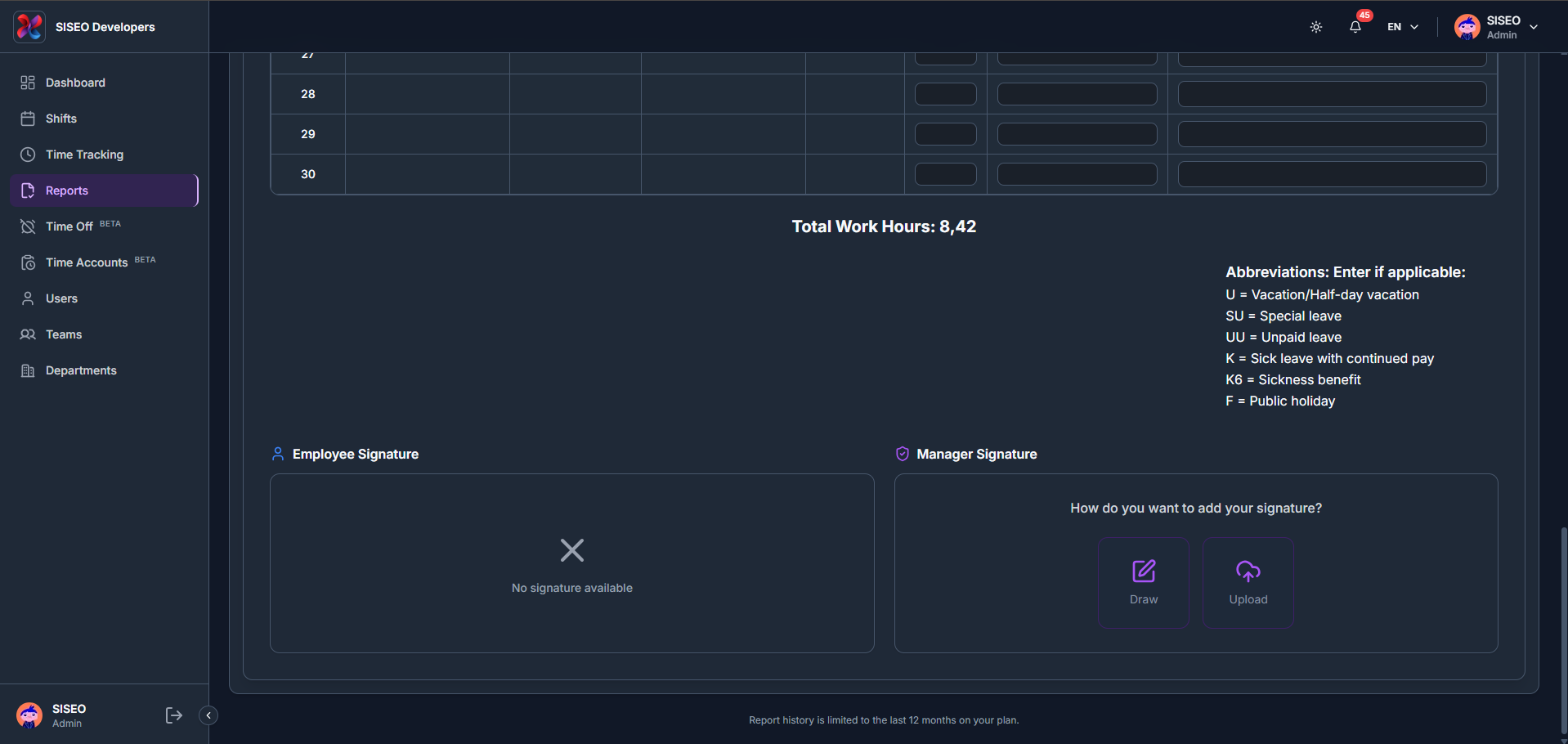
At the bottom of the report, the Total Work Hours (or Total Pending Hours, if entries are still unapproved) is shown along with an abbreviation legend, and signature blocks for both the employee and the manager.
- 1
Pending hours, If any entries in the period are still pending, this line reads Total Pending Hours instead and is highlighted until those entries are approved.
- 2
Draw, Sign directly using your mouse, trackpad or touchscreen.
- 3
Upload, Upload an existing signature image (PNG or JPG, up to 5MB).
Leave a Reply