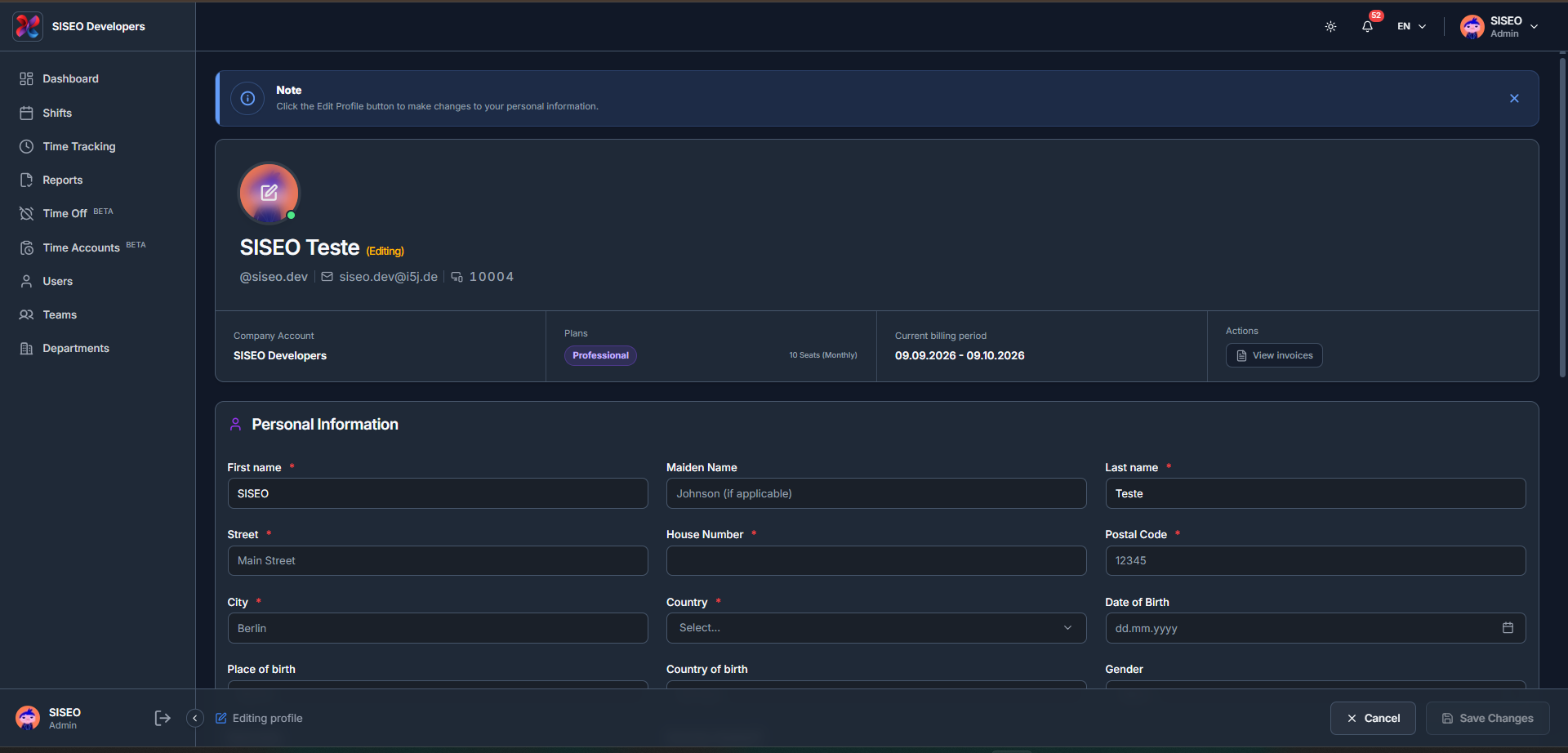
Settings holds two quite different things: the long personal-details questionnaire your employer needs for payroll and HR, and the controls for which notifications reach you and how. They behave nothing like each other, one has a one-way confirmation step, the other saves every switch the moment you touch it.
7.1Overview
Two tabs:
The page opens on User. If notifications are switched off for your company that tab is not there, the tab strip disappears entirely, and you see the questionnaire alone.
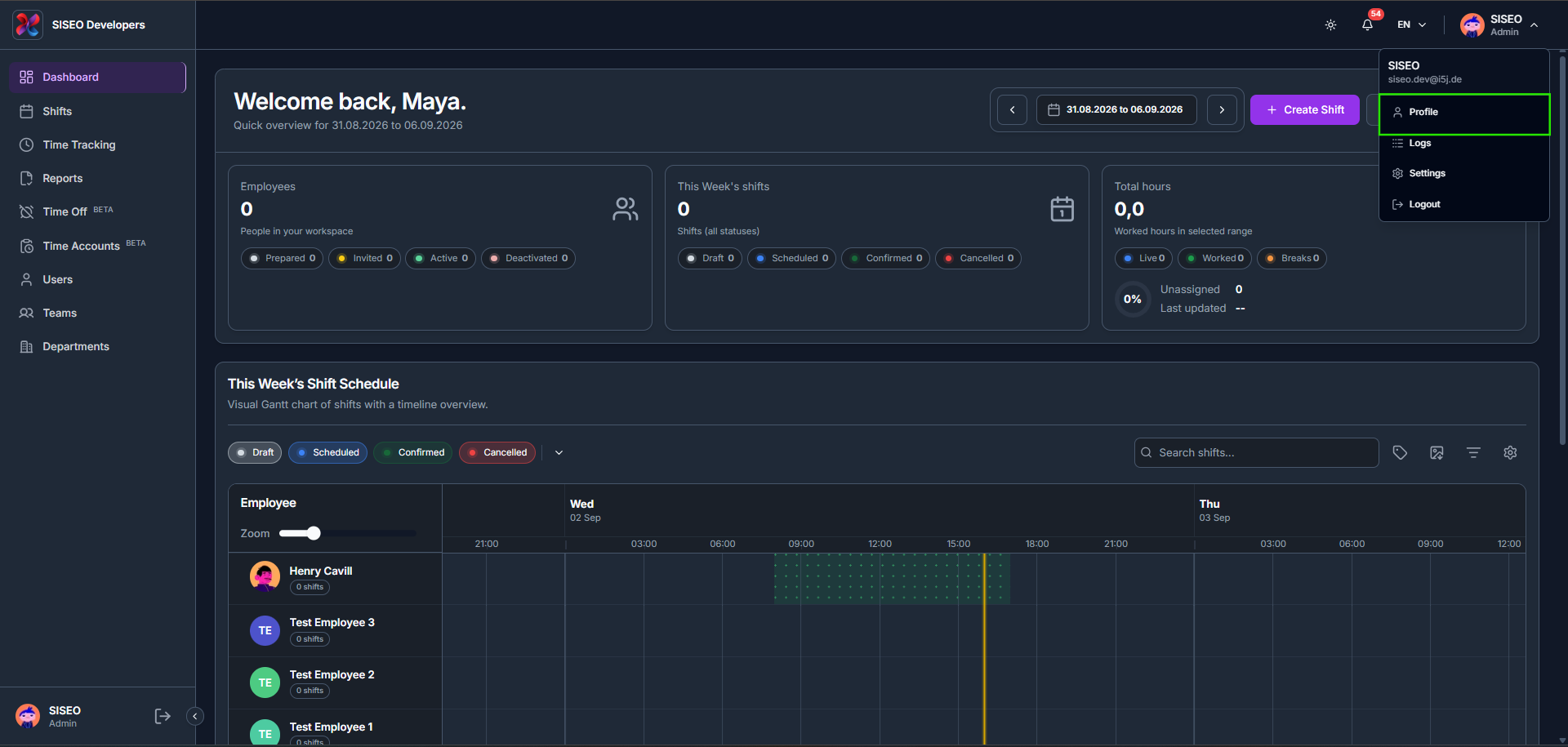
Settings is not in the sidebar, open it from the account menu in the top bar (2.2.2).
7.2The User tab, Personal Details
7.2.1The sections
The questionnaire is a stack of cards, each a group of related fields. Which ones you see is decided by your employer; the full set is:
A section your employer has not shared with employees is not rendered at all, not greyed out, simply absent. Nothing is missing if a heading in this list is not on your screen.
7.2.2Most sections start closed, and all of them start locked
Two things stand between you and typing, and it is worth knowing both before you go hunting for a bug.
-
1
Open the section. Every section except General Information and Personal Data arrives collapsed. Click the chevron at its left to expand it. Those first two are always open and have no chevron.
-
2
Unlock the section. Click the pencil at its top right. Until you do, the fields are visible but completely inert, clicks do not land at all.
Once unlocked, a pulsing dot and the line “Editing mode – use Save Changes button at bottom to save” appear under the section title, and the pencil disappears. Clicking the pencil also expands the section if it was closed.
7.2.3The status badge
A badge sits at the top right of the page, beside Change password. It has two states:
| Badge | Colour | What it means |
|---|---|---|
| Confirmed – Admin Allowed Editing | Blue | An admin has explicitly reopened the form for you. |
| Confirmed – Editing not allowed | Red | An admin has not. This is the default state. |
7.3Confirmation, the one-way step
This questionnaire has a point of no return in it. Read this section before you fill anything in.
7.3.1What confirming does
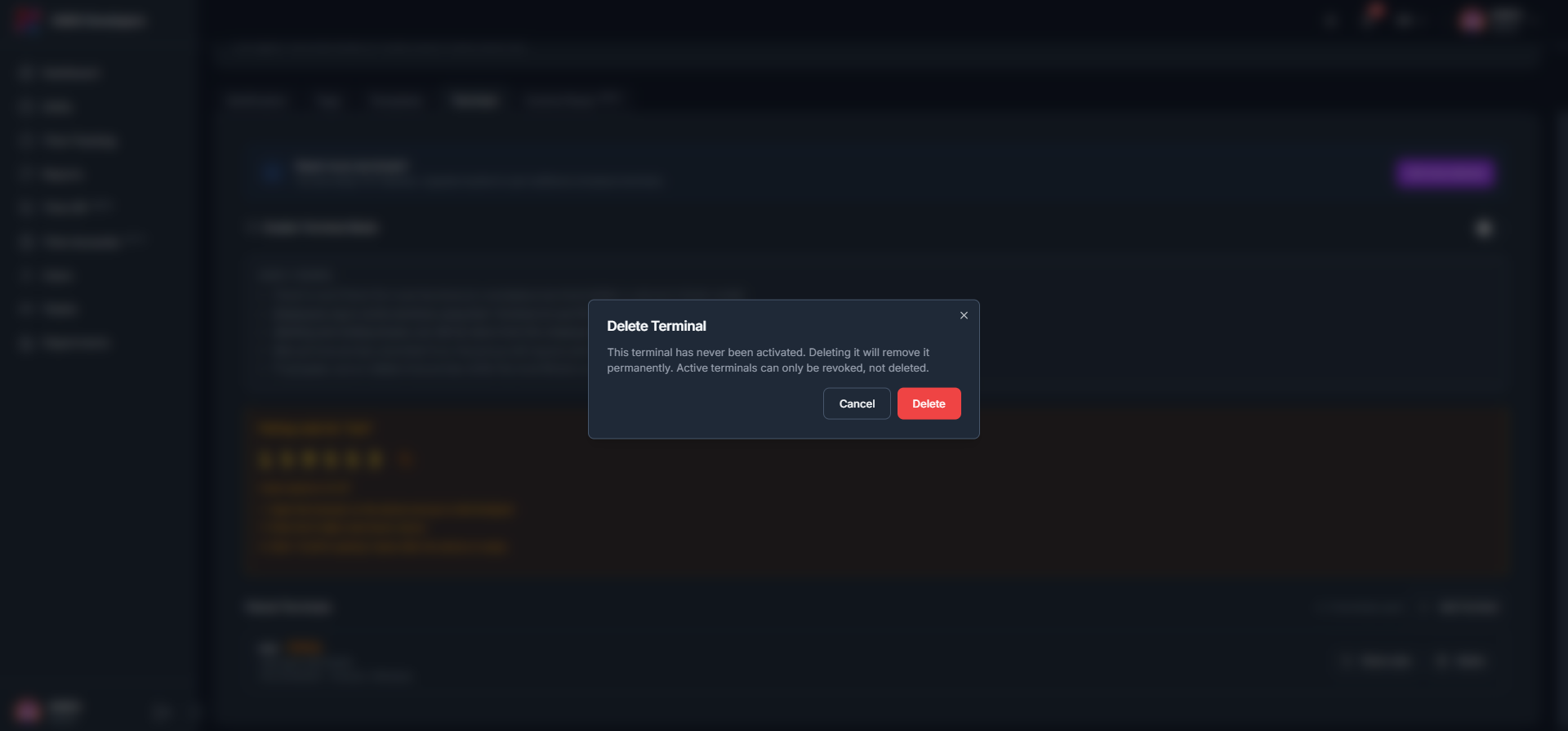
The first time you save, TAMEDA does not simply save. It opens Confirm Data Submission:
“This data will be sent and visible to your employer. Please check and make sure everything is correct. After saving, you cannot change this data anymore. Only an Admin can make changes.”, with the middle sentence highlighted in amber.
Take the first option unless you are certain. Reading through everything once more costs a minute; getting it wrong means asking an admin to reopen the form for you.
7.3.2Saving after confirmation
Once you have confirmed, the pencils are gone and the form is read-only until an admin reopens it. When they do, saving no longer confirms anything, it just asks Confirm Save, “Are you sure you want to save these changes?”, and saves. The one-way warning does not come back.
7.4Filling in and saving
7.4.1The action bar
As soon as anything differs from what is stored, a bar appears fixed across the bottom of the screen:
Clicking it opens whichever dialog applies (8.3). Any documents you added are uploaded as part of the same save, so the button stays busy until they are all through, do not navigate away while it is working.
7.4.2The unsaved-changes guard
The page will not let you wander off mid-edit. Unsaved Changes, “You have unsaved changes. Do you really want to continue?”, appears when you click Cancel, when you click a link elsewhere in TAMEDA, and when you press your browser’s Back button. Discard Changes throws the edits away; Cancel keeps you where you are.
Reloading or closing the tab triggers your browser’s own “leave site?” prompt instead, which looks different because it comes from the browser rather than from TAMEDA.
7.4.3If the form will not load
A red banner headed Error Loading Profile means the data could not be fetched. Reload the page; if it persists, tell your manager rather than filling the form in again from memory.
7.5Documents on this page
The Documents section here is not the same control as the one on your Profile page (7.6), and the differences matter.
7.6Changing your password
Change password sits at the top right of the User tab, beside the status badge. It is the same dialog as on the Profile page, including the rule that changing your password signs you out. See 6.7 before you use it.
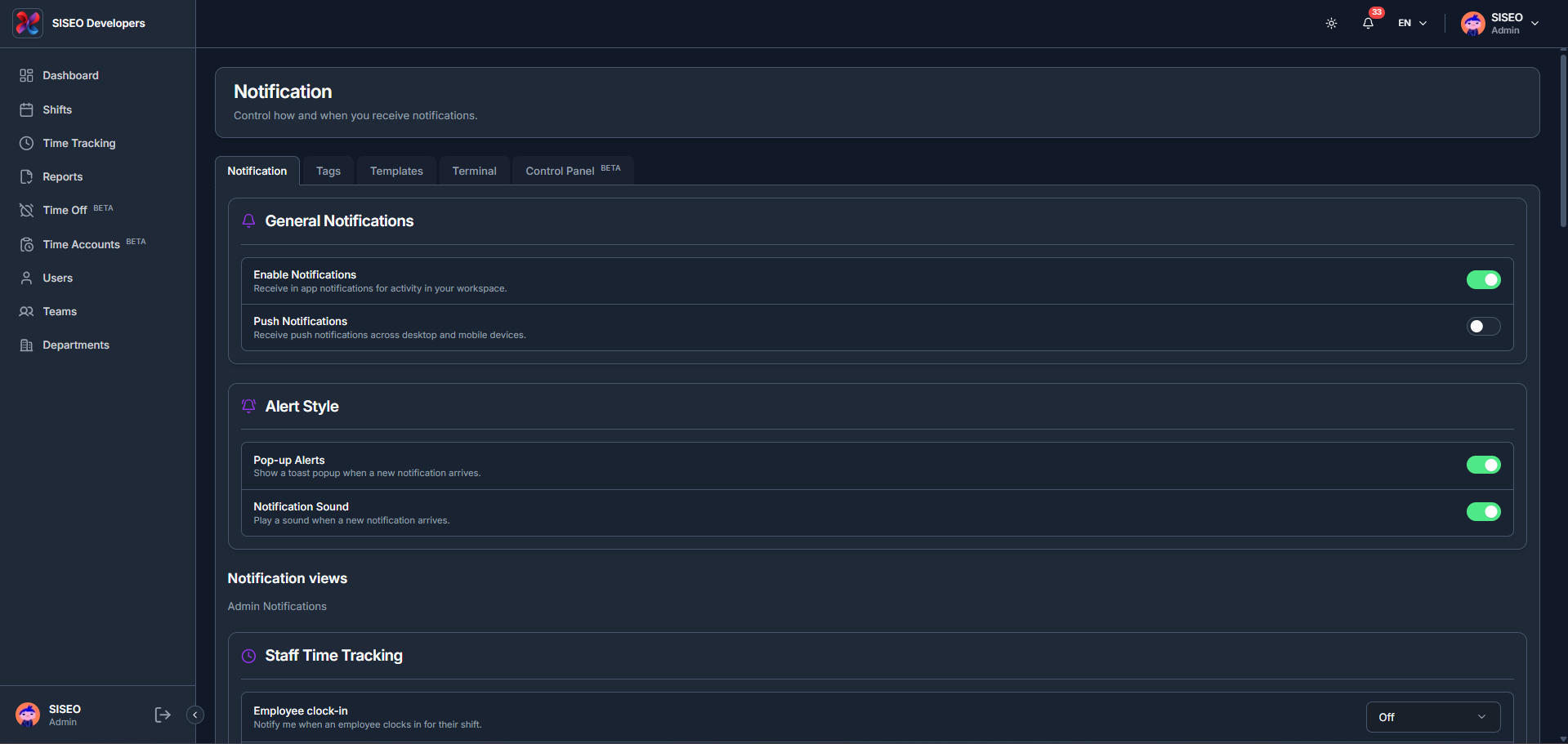
7.7The Notification tab
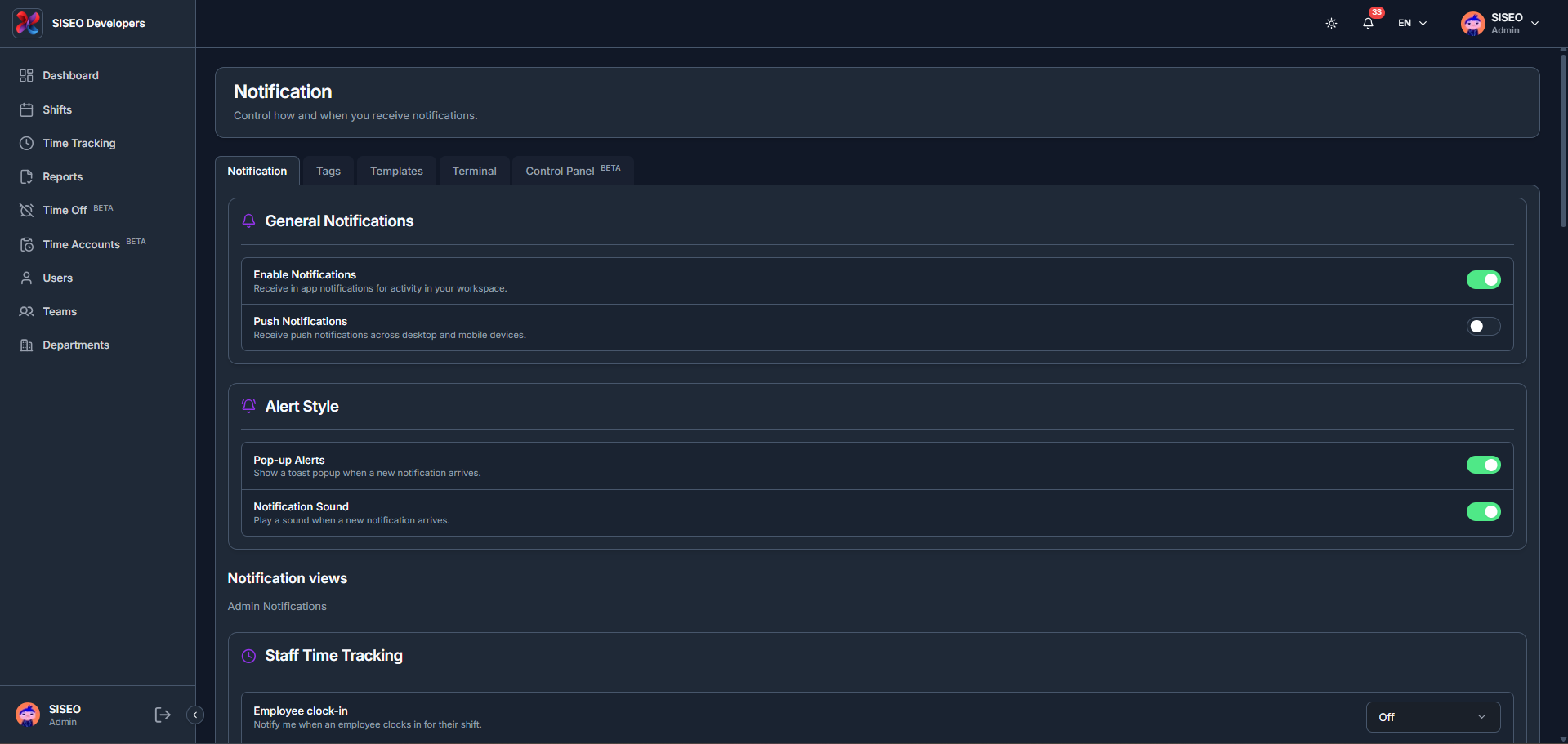
Headed Notification, “Control how and when you receive notifications.”
7.7.1General, the master switch
Refuse the browser prompt and you get “Notification permission was denied.”; push stays off and TAMEDA cannot ask again, you have to allow notifications for the site in your browser’s own settings. On a browser that does not support them at all it says “Push notifications are not supported in this browser or context.”
Push is per device and per browser. Enabling it on your laptop does not enable it on your phone.
7.7.2Alert Style
How a notification behaves when it arrives:
7.7.3Choosing a delivery method per notification
Below a heading reading Notification views, “Personal notification categories for your account.”, the settings are grouped by subject, each row one kind of event with its own dropdown:
Where push is unavailable on the device, the row says “Browser push is disabled on this device.” and the push options do nothing until you fix that in 8.7.1.
7.7.4What you can be notified about
The groups, in the order they appear:
The Coming Soon rows are shown so you know they are planned. Their switches do nothing yet.
7.7.5The delay dropdowns
Two groups have a second dropdown beside the delivery one:
The wording is the thing to watch: one is after the event, the other before it.
7.8If something in this guide is missing from your screen
None of these are faults. If you expected something and cannot find it, ask your manager whether it is enabled for your team.