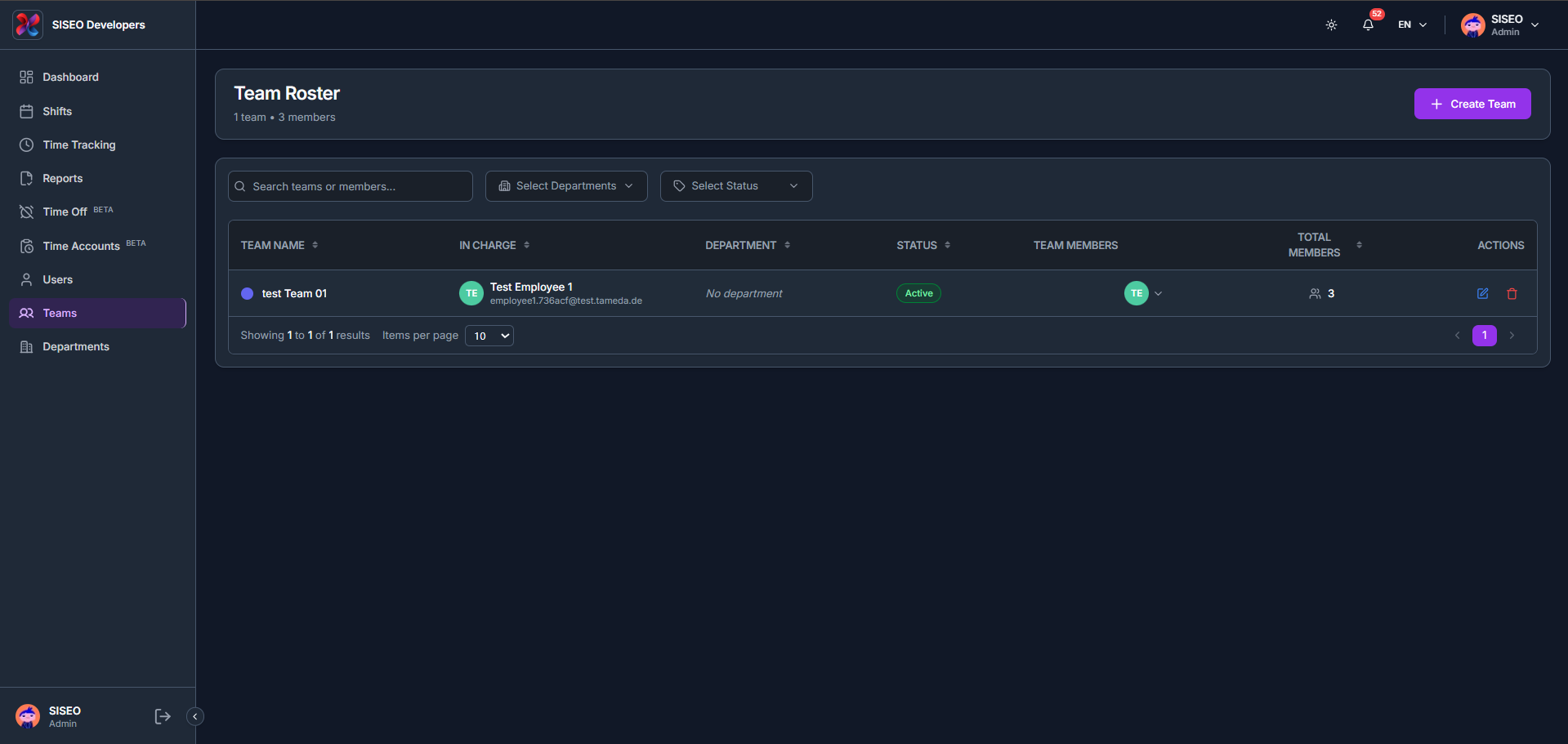
The Teams page (Team Roster) lists every team in your workspace, with columns for team name, in-charge person, department, status, team members, total members and actions.
8.1Overview
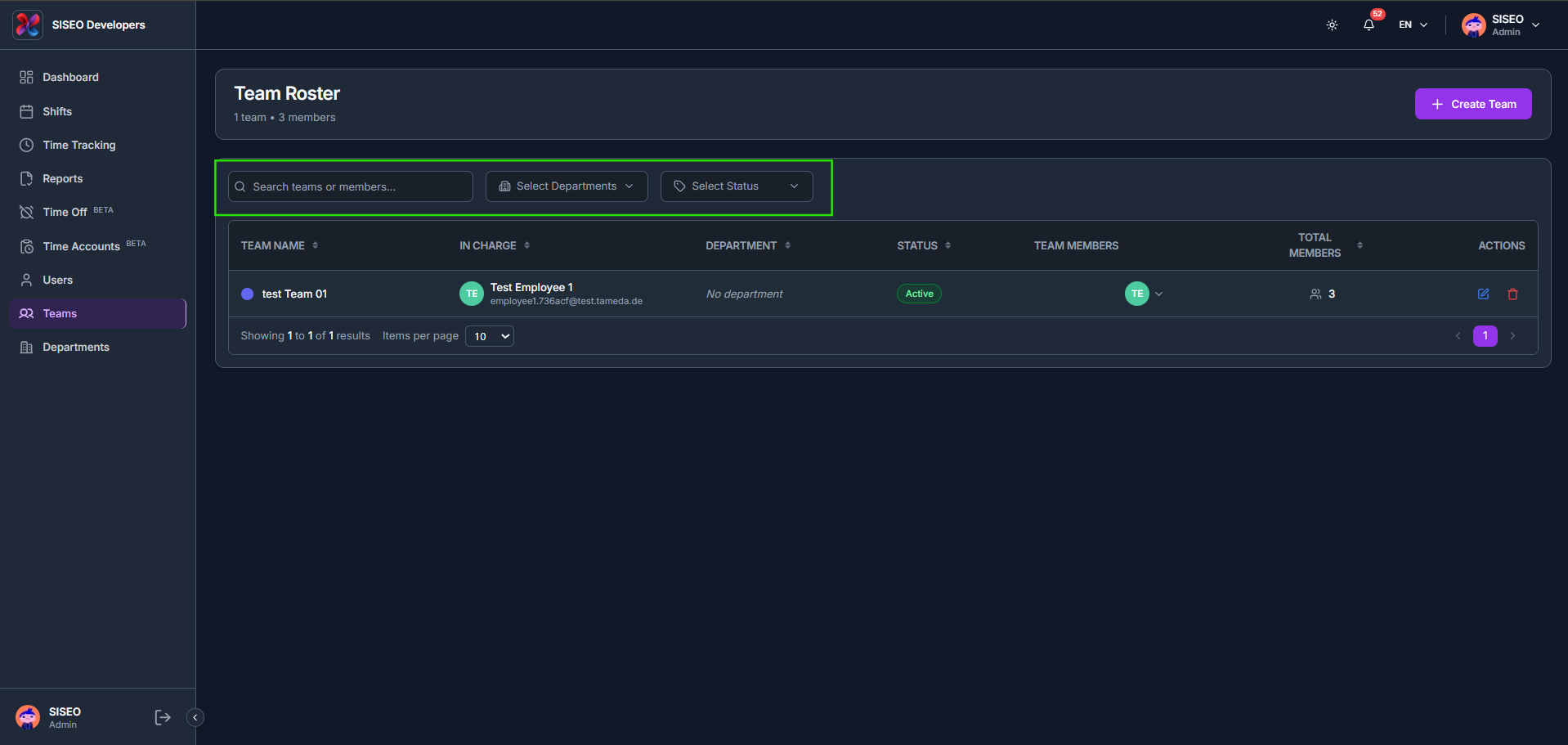
8.1.1How to filter the team roster
- 1
Use Search teams or members, Select Departments and Select Status above the table.
- 2
Select Departments filters the roster to teams in one or more departments.
- 3
Select Status filters by Active or Inactive teams, or click Select All.
8.2How to create a team
- 1
Click + Create Team in the header.
- 2
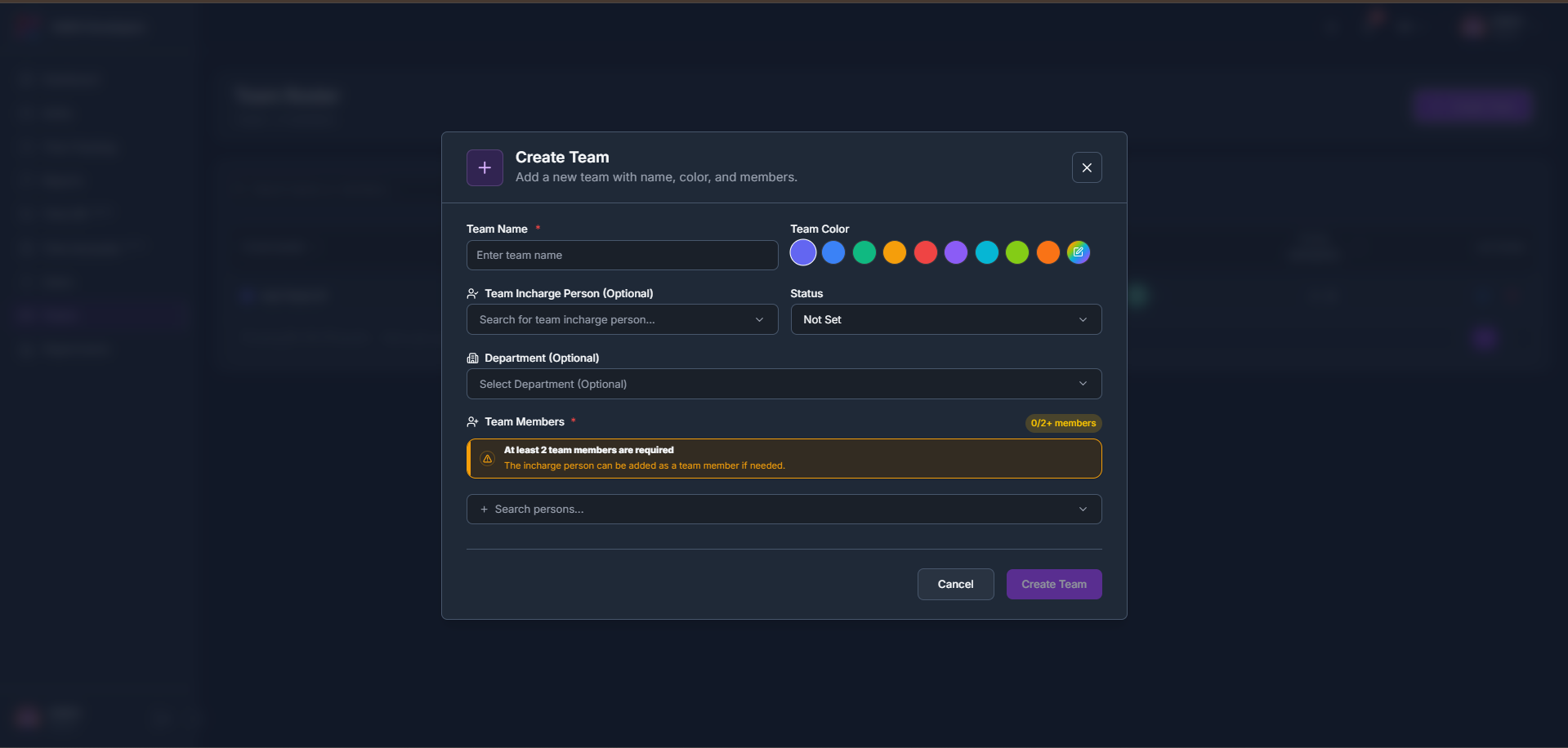
Enter a Team Name and pick a Team Color, then optionally choose a Team Incharge Person, a Status and a Department.
- 3
Add at least 2 Team Members, the incharge person can also be added as a team member if needed, then click Create Team.
8.3How to edit a team
- 1
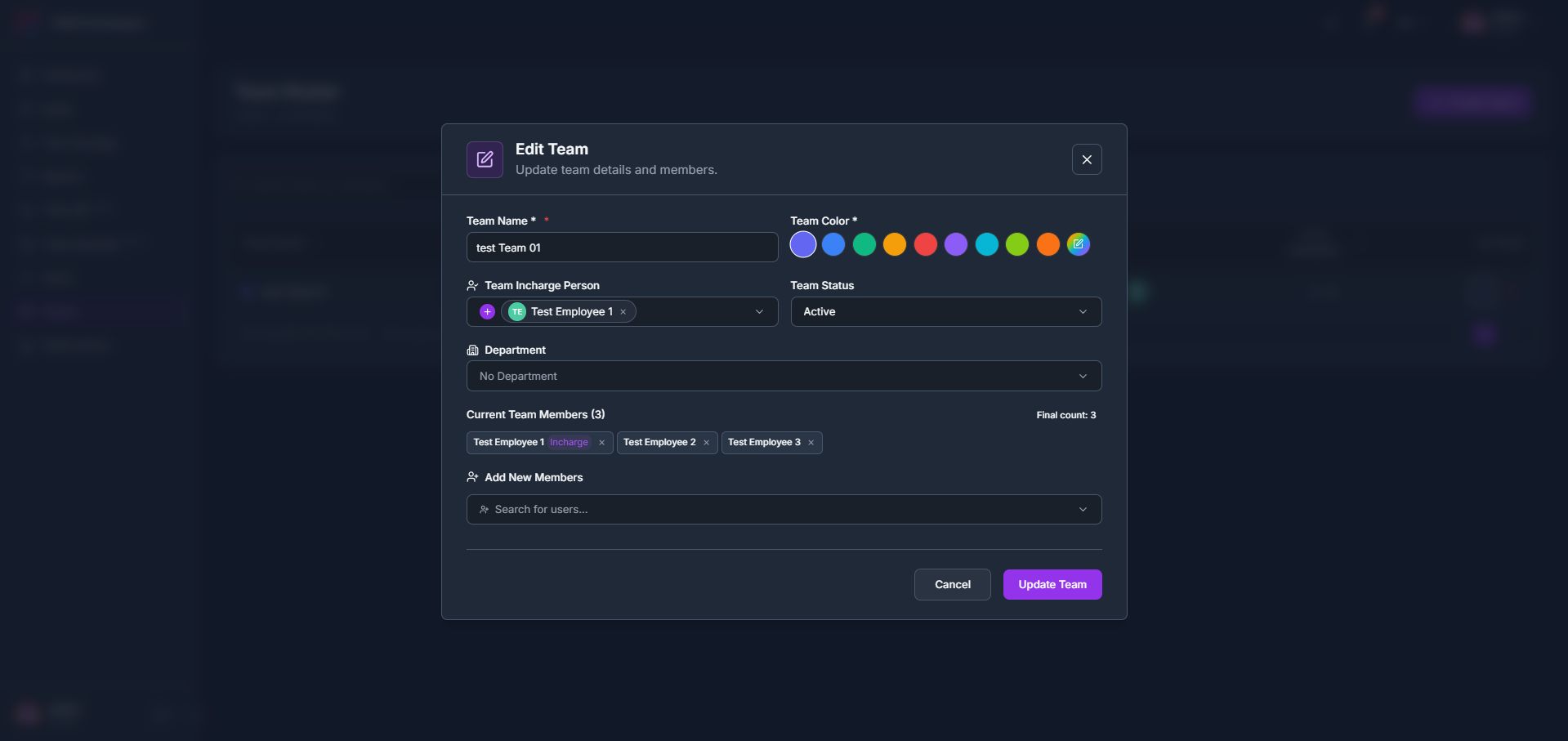
Click the edit (pencil) icon on a team’s row to open Edit Team.
- 2
Update the Team Name, Team Color, Team Incharge Person, Team Status or Department, and add or remove Current Team Members, then click Update Team.
8.4How to delete or restore a team
- 1
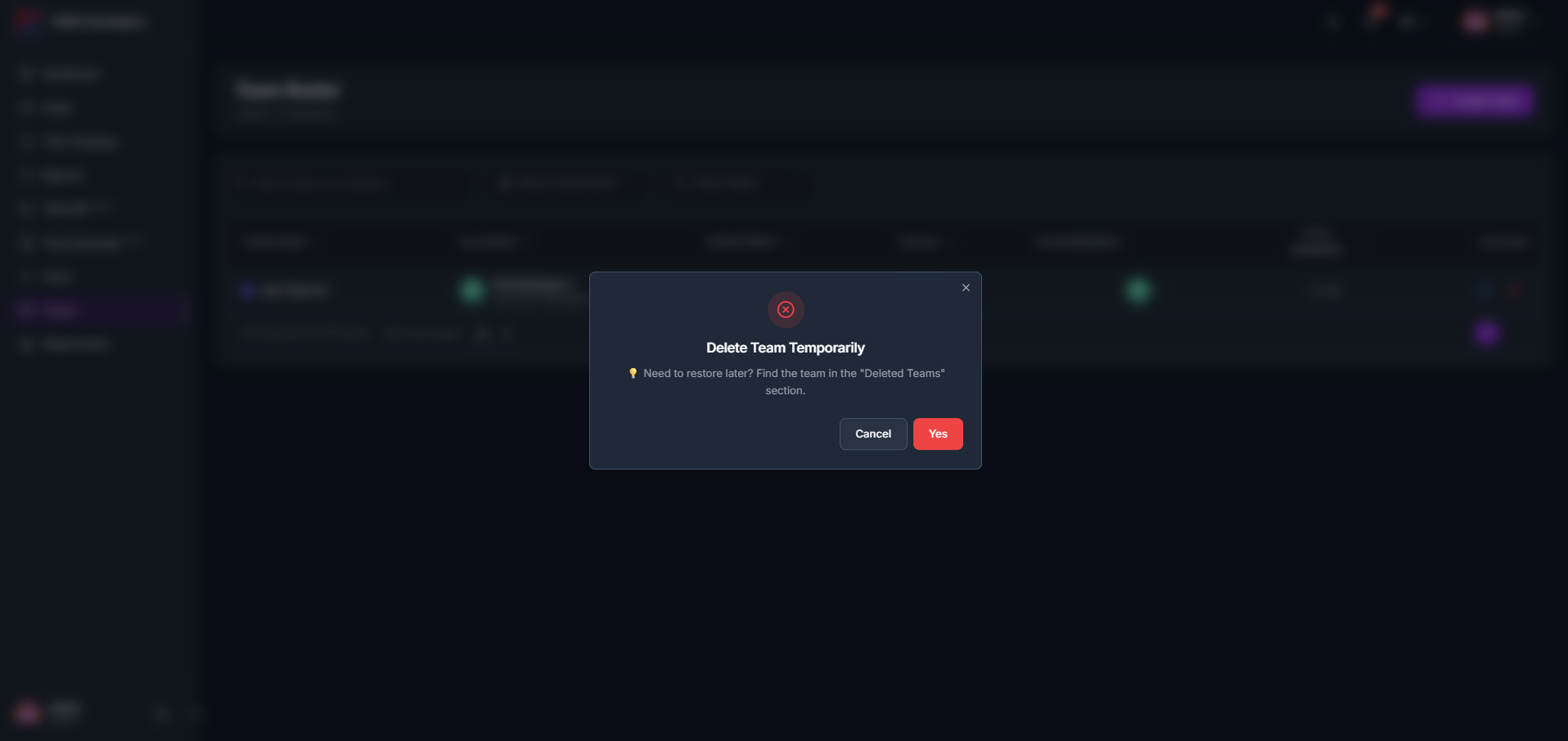
Click the delete (trash) icon on a team’s row and click Yes to delete it temporarily; a deleted team can be found and restored later from the Deleted Teams section.
- 2
Find the team under Recently Deleted Teams and click Restore Team to move it back to active teams, where it becomes available for assignments again.
Leave a Reply