The Time Accounts page shows working-time balances for every employee over a selected date range, with an Employee balances table listing each person’s parameters, target, worked net hours, balance and status.
6.1Overview
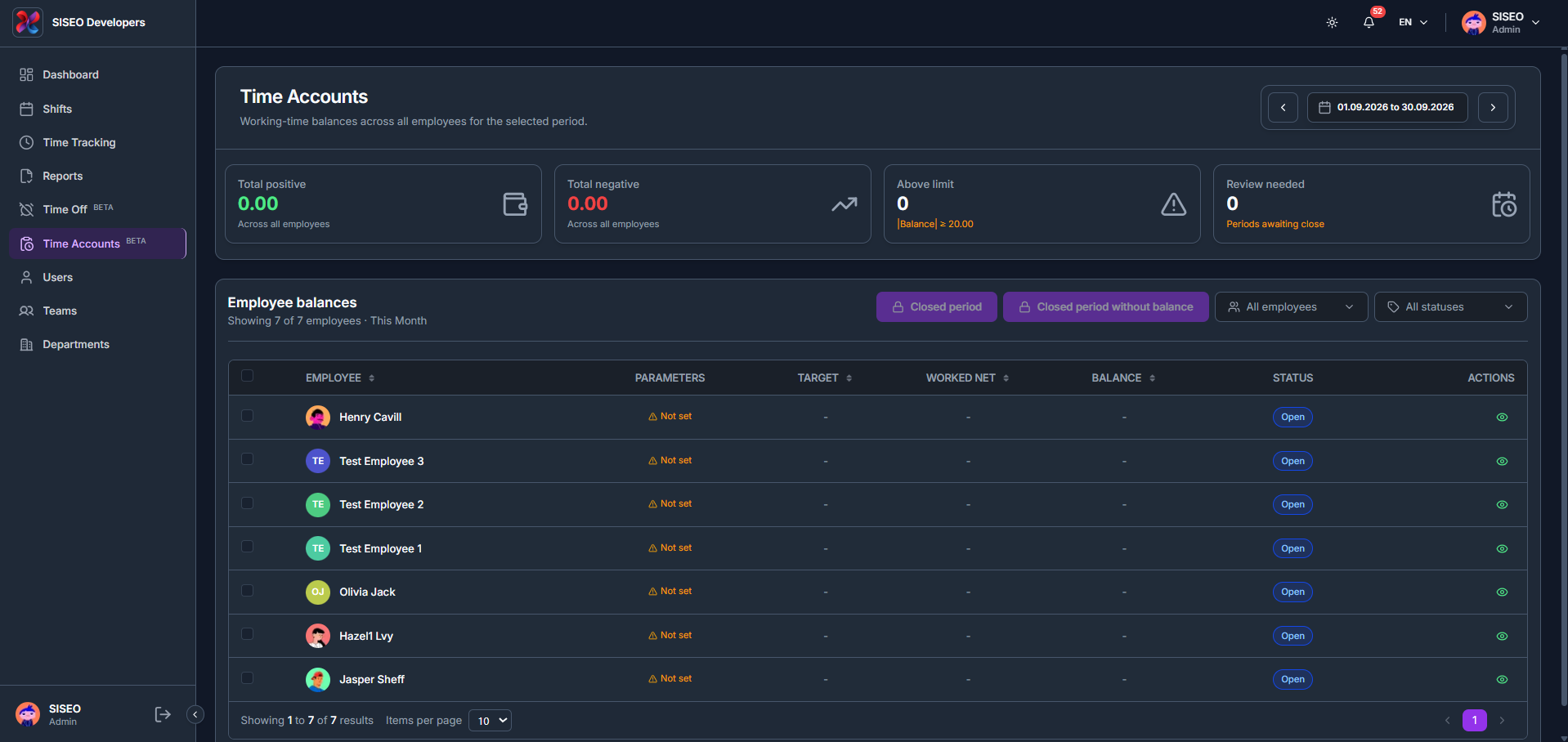
6.1.1How to read the summary cards
- 1
Total positive, The combined positive balance across all employees for the selected period.
- 2
Total negative, The combined negative balance across all employees for the selected period.
- 3
Above limit, The number of employees whose balance has reached or exceeded the configured limit.
- 4
Review needed, The number of periods awaiting close that need a review before they can be locked.
6.2How to filter the employee balances table
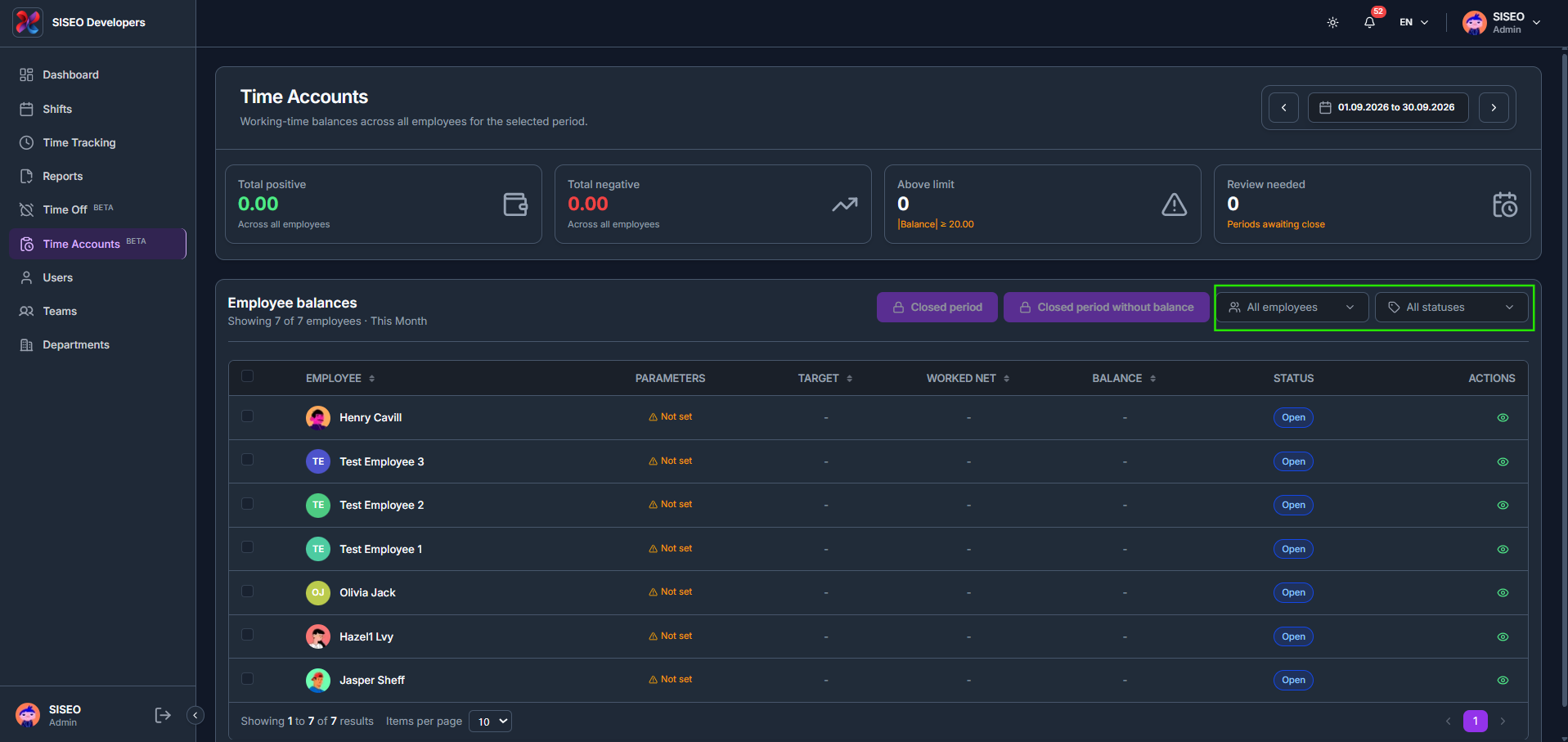
6.2.1How to filter by employee or status
- 1
Click All employees or All statuses above the balances table.
- 2
Under All employees, search by name or tick individual Teams and Users, or click Select All.
- 3
Under All statuses, tick one or more of Open, Review needed or Closed, or click Select All.
6.3Employee time account detail
6.3.1How to open an employee’s time account
- 1
Click the eye (view) icon on an employee’s row to open their time account.
6.3.2Overview tab
- 1
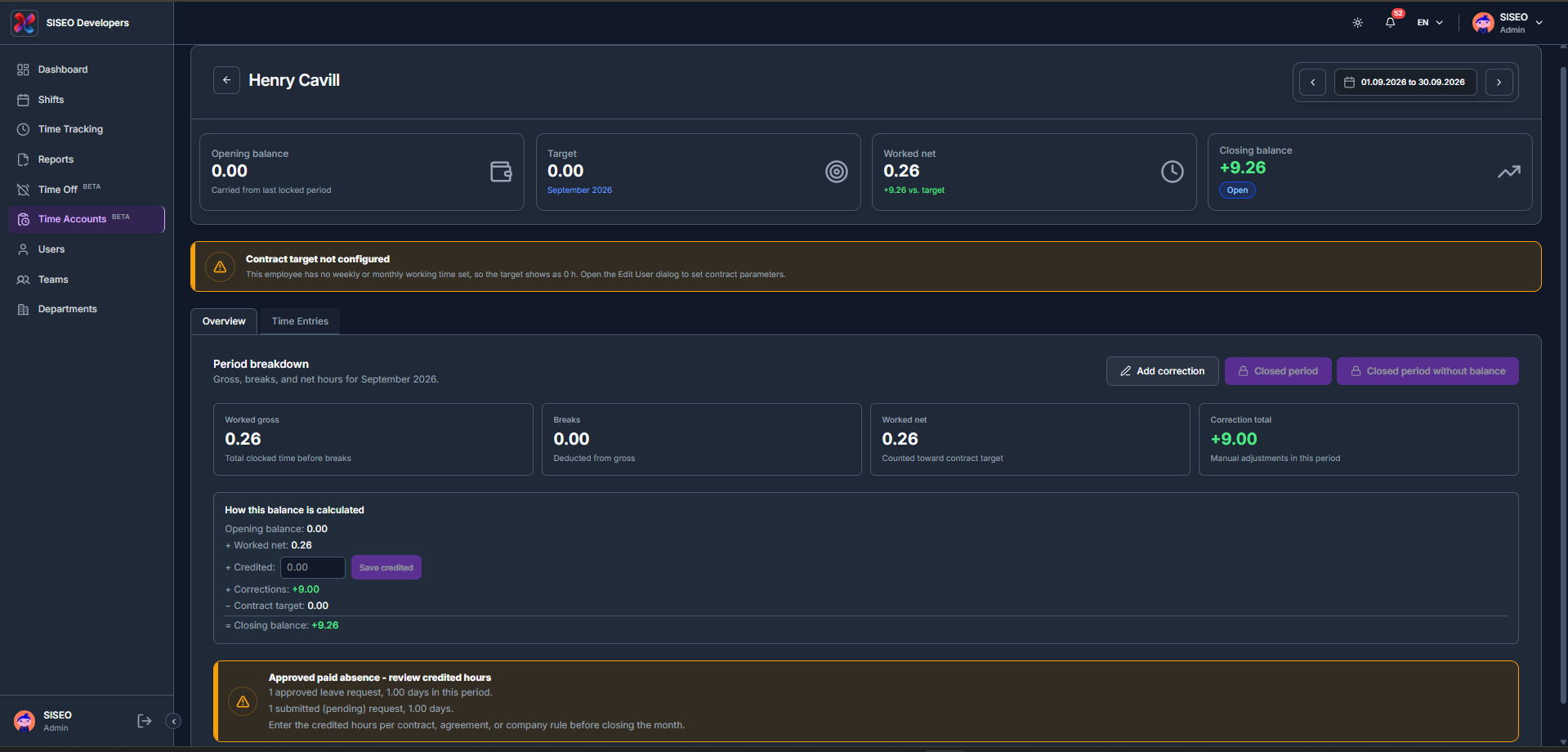
The Overview tab shows the Opening balance, Target, Worked net and Closing balance for the period, followed by a Period breakdown of Worked gross, Breaks, Worked net and Correction total, and a How this balance is calculated summary.
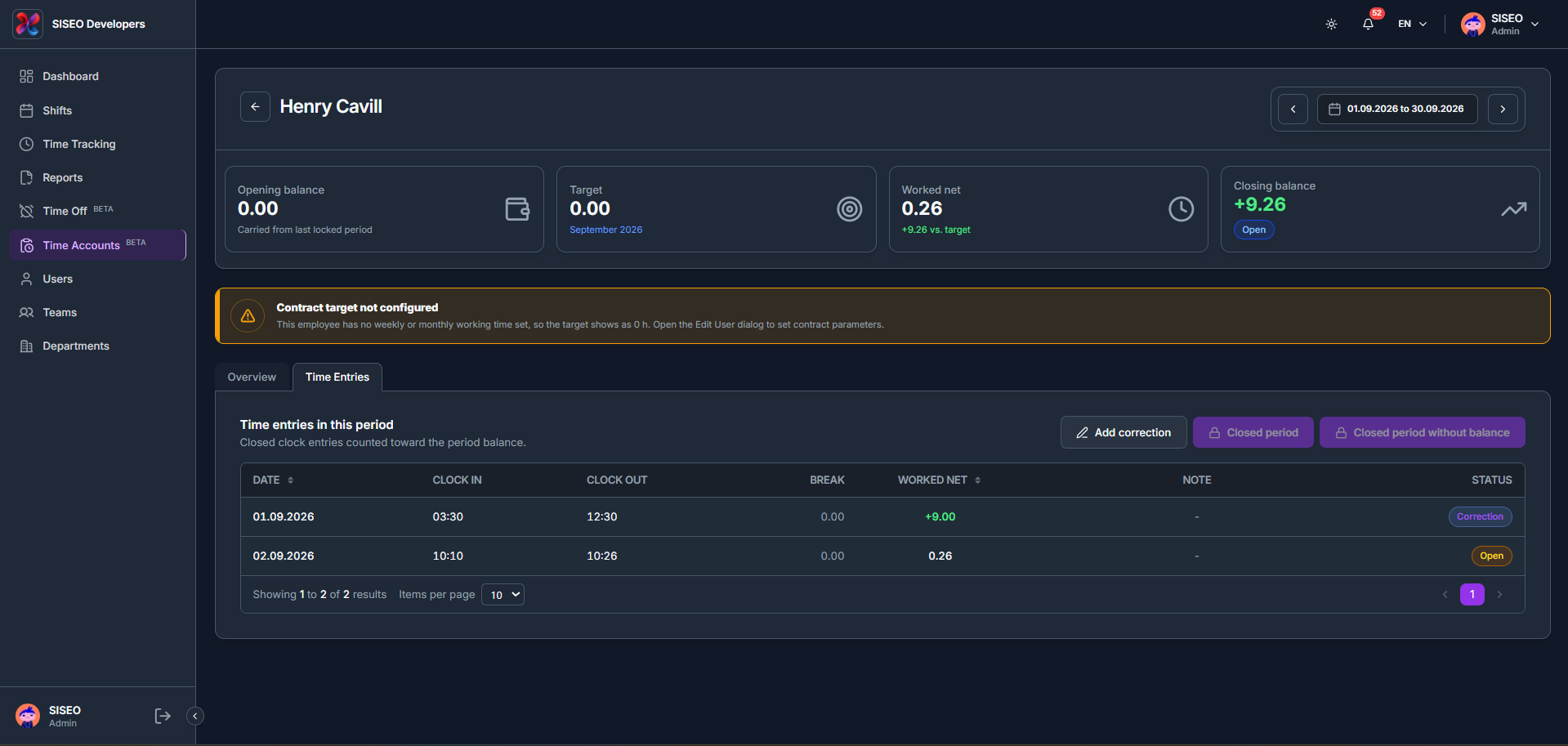
Contract target not configured, Shown above the tabs whenever the employee has no weekly or monthly working time set, so the target shows as 0 h until it’s set from the Edit User dialog. This banner appears on both the Overview tab and the Time Entries tab. Approved paid absence, review credited hours – Lists any approved or submitted (pending) leave requests in the period, as a reminder to enter the credited hours per contract, agreement, or company rule before closing the month.
6.3.3How to credit extra hours
- 1
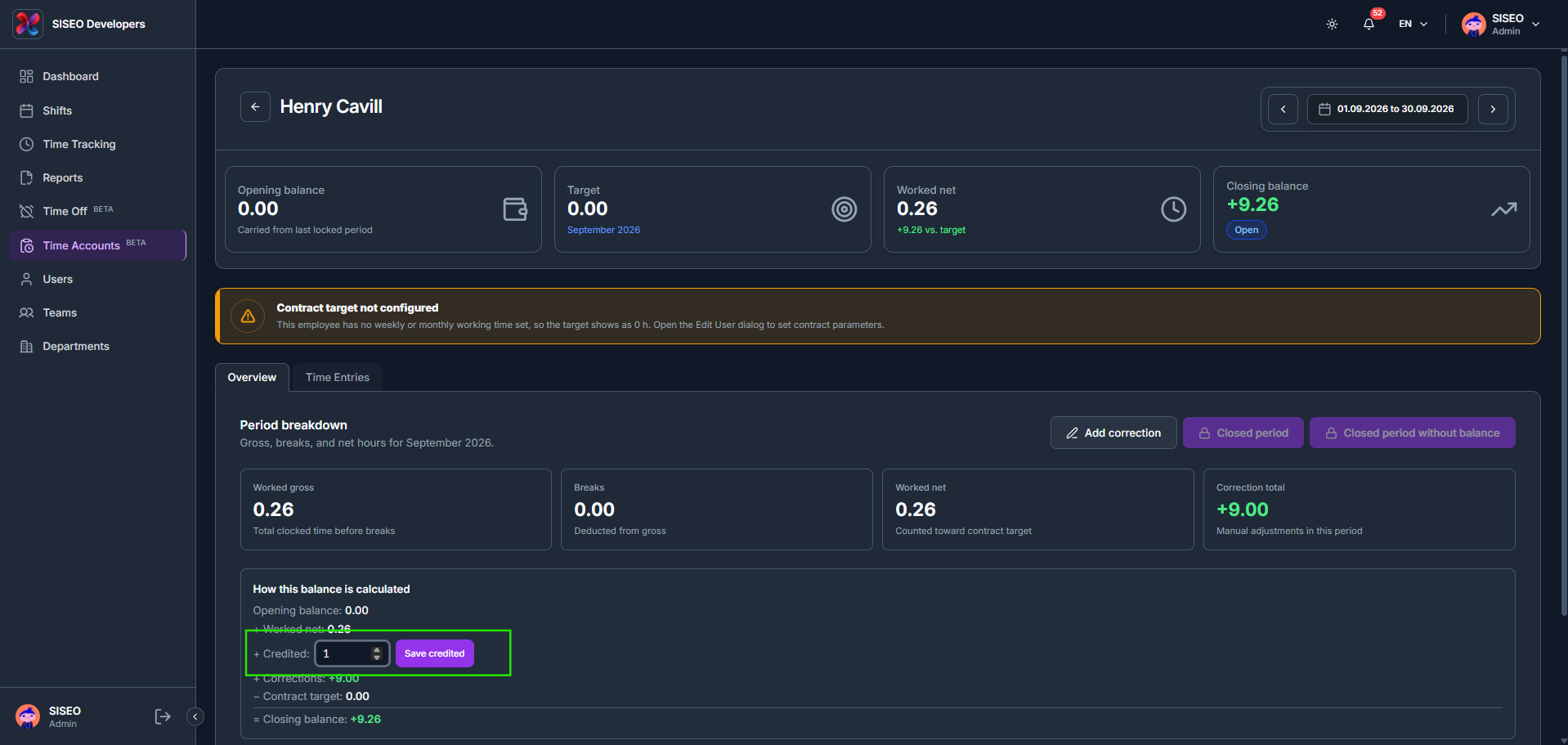
Enter a value in the Credited field under How this balance is calculated.
- 2
Click Save credited to add the manually credited hours to the closing balance.
6.3.4How to add a correction
- 1
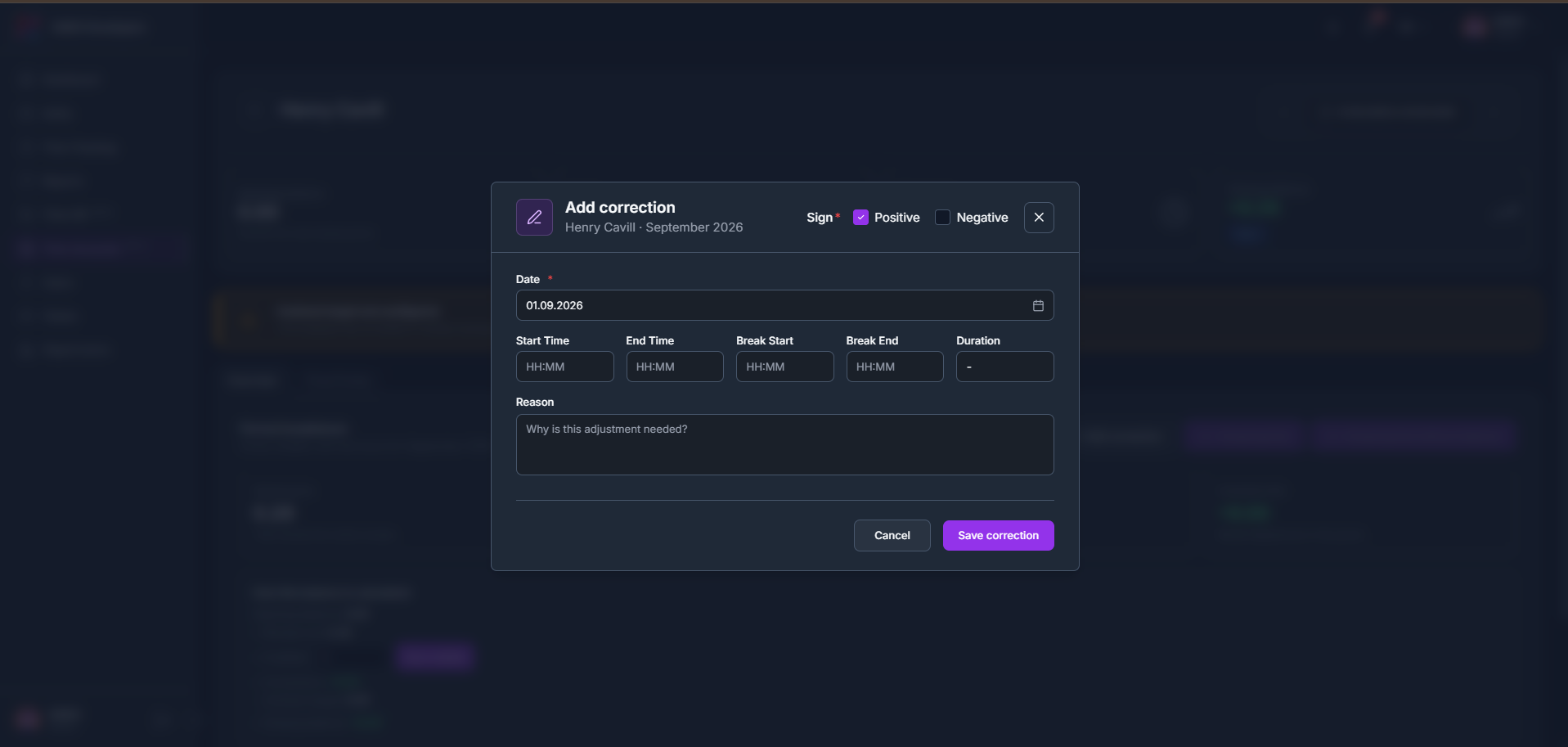
Click Add correction from the Overview tab to open the same Add correction form used in Time Tracking, choose a Sign of Positive or Negative, then fill in the Date, Start/End Time, Break Start/End and a Reason.
- 2
Add correction is also available from the Time Entries tab and opens the identical form.
6.4Time Entries tab
6.4.1How to review time entries
- 1
Switch to the Time Entries tab to see the closed clock entries counted toward the period balance, with columns for Date, Clock In, Clock Out, Break, Worked Net, Note and Status.
- 2
Each entry’s Status shows Correction for a manually adjusted entry, or Open for one still awaiting closure.
Leave a Reply