The Logs page records every action taken in the system clock-ins, clock-outs, breaks, profile edits, and manual entries with full traceability. It is opened from the account dropdown, but functions as its own dedicated page. Each row lists DATE, TIME, CATEGORY (for example Clock or Profile), USER, DETAILS, and ID. The icons next to the search bar give quick access to the filters and actions used on this page.
12.1Overview
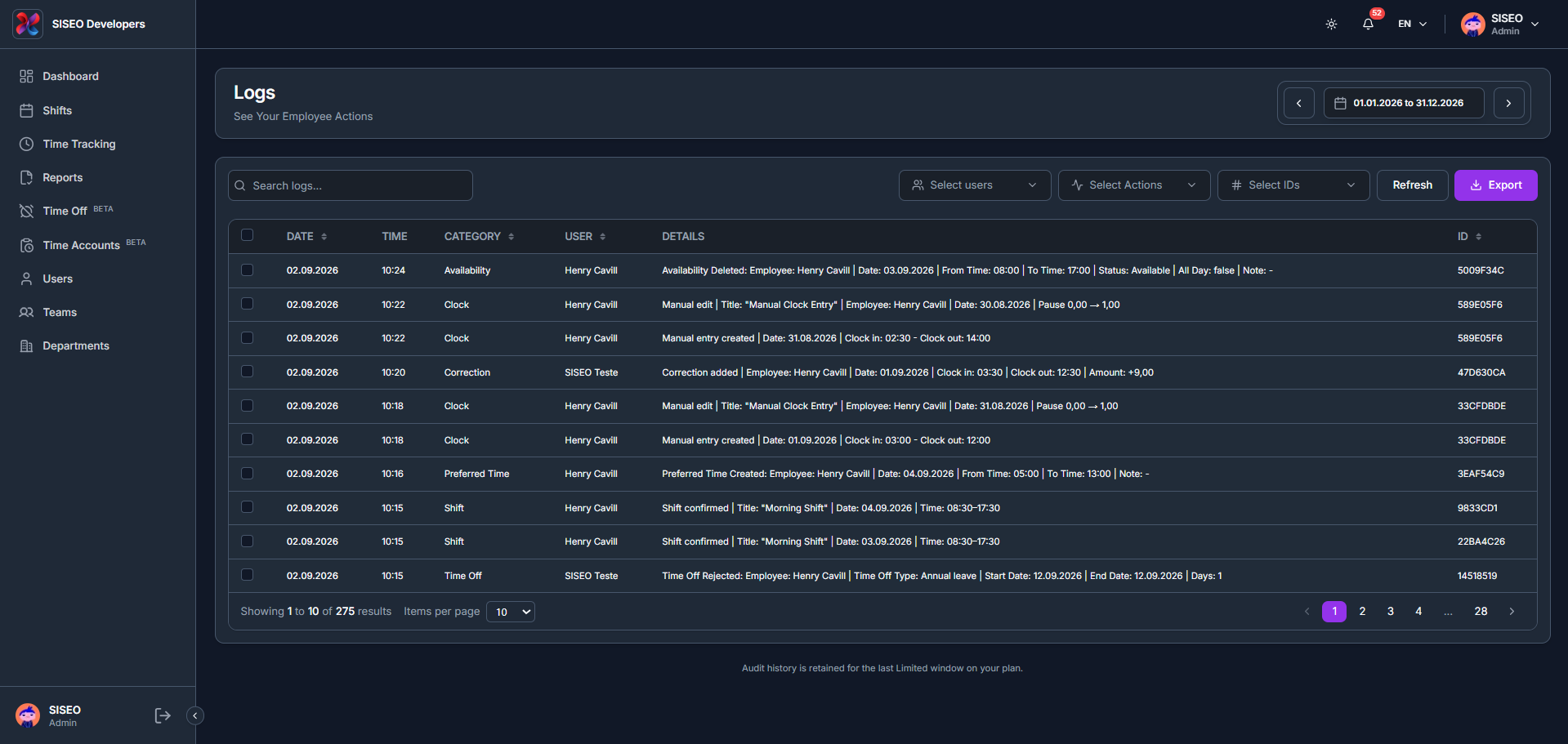
12.1.1How to find a specific log entry
- 1
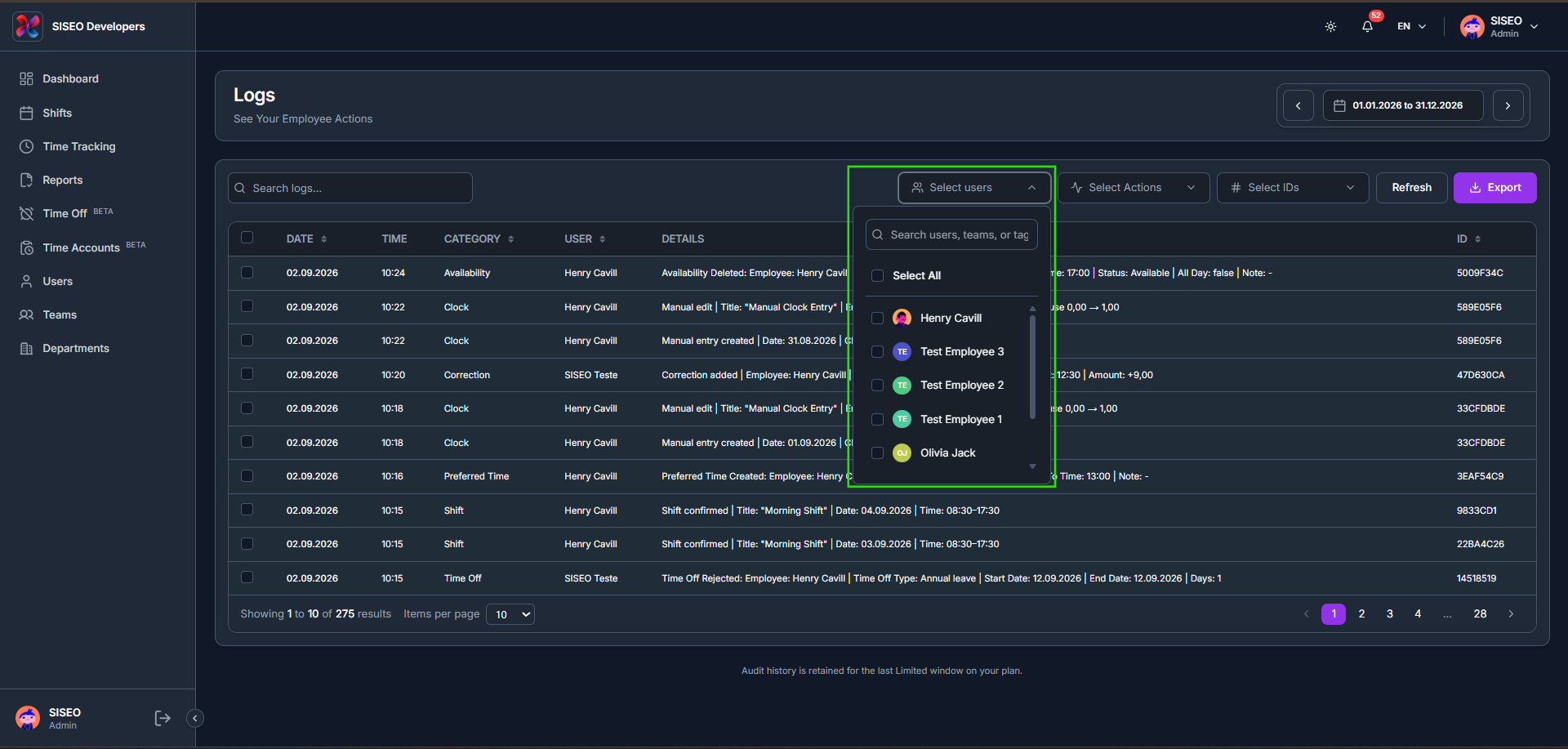
Use the Select users filter to narrow the list to specific employees, by name, team, or tag.
- 2
Use the Select Actions filter to narrow the list to specific action types, such as Clock In, Clock Out, Entry Deleted, or Profile Edited.
- 3
Use the Select IDs filter to pull every log tied to one specific shift or entry, or type directly into the Search logs box.
- 4
Click Refresh if you need the very latest entries, or click Export to download the filtered log list.
Logs are automatically deleted after 6 months.
Leave a Reply